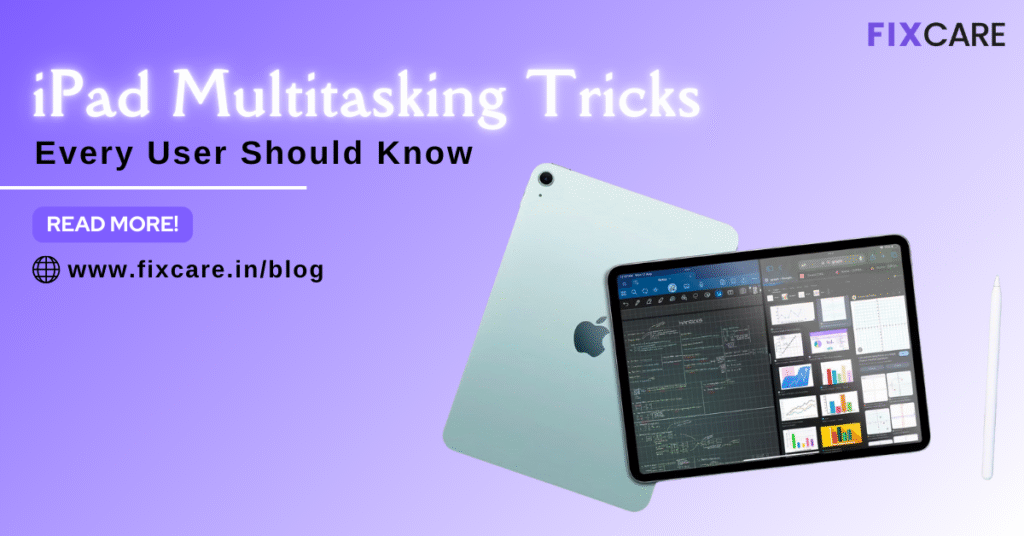
iPads have evolved from simple content consumption devices into powerful productivity tools capable of replacing laptops for many users. Whether you are a student, creative professional, business owner, or casual user, mastering iPad multitasking tricks can completely transform the way you work and interact with your device.
Apple has equipped iPads with advanced multitasking features that allow you to run multiple apps at once, switch between tasks smoothly, take notes while browsing, and manage workflows far more efficiently. However, many users are unaware of these powerful capabilities or don’t use them to their full potential.
In this in-depth blog article, we will explore the most practical and effective iPad multitasking tricks every user should know to boost productivity, save time, and make your iPad function like a high-performance workstation.
Understanding iPad Multitasking: What It Really Means
Before diving into the techniques, it’s important to understand what multitasking on iPad actually involves. Multitasking allows you to use more than one app simultaneously, view multiple windows, drag and drop content across apps, and switch between tasks effortlessly.
Some core multitasking features include:
Split View
Slide Over
Stage Manager
Picture-in-Picture (PiP)
App Switcher
Quick Note
Together, these features form the foundation of advanced iPad multitasking tricks that enhance efficiency and workflow.
Split View: Use Two Apps Side by Side
Split View is one of the most powerful iPad multitasking tricks. It allows you to open two apps on the screen at the same time, working with both simultaneously.
How to Activate Split View
Open the first app.
Swipe up slightly from the bottom to reveal the Dock.
Drag the second app from the Dock to the left or right side of the screen.
Adjust the divider to resize each app.
Use cases:
Browsing while taking notes
Editing documents while referencing emails
Watching tutorials while practicing
Split View dramatically reduces the need to constantly switch apps.
Slide Over: Floating App Convenience
Slide Over is another essential iPad multitasking trick that lets you quickly pull in an app as a floating window over your current screen.
How to Use Slide Over
Drag an app from the Dock to the center of the screen.
The app appears as a smaller floating window.
You can swipe left or right to access different Slide Over apps without disrupting your main workflow.
Perfect for quick messaging, browsing, or responding to notifications.