

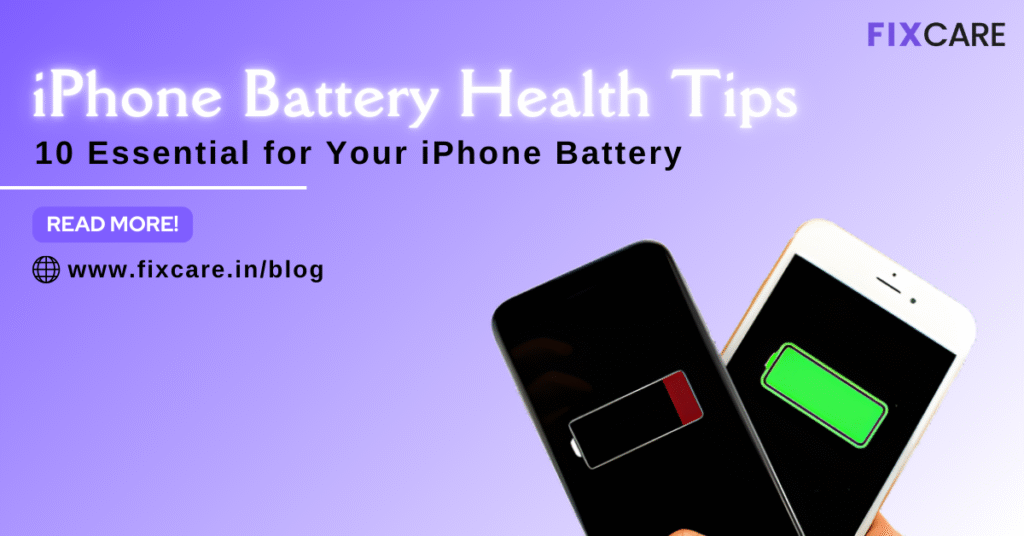
Stop Killing Your iPhone Battery: 10 Essential Improve iPhone Battery Health Tips
WhatsApp
Twitter
Facebook
Table of Contents
We live our lives through our iPhones. From communication and navigation to entertainment and work, they are indispensable tools. But there is nothing more frustrating than watching your battery health capacity tick down, day after day, until you are tethered to a wall socket just to make it past lunchtime.
The reason your iPhone battery degrades isn’t usually due to a defect; it’s due to chemical aging. The lithium-ion batteries that power your device are consumable components with a finite lifespan. Every full charge cycle, and every exposure to extreme conditions, causes the battery’s ability to hold a charge to decrease.
The good news is that you have significant control over how fast this degradation happens. By adopting smart habits and adjusting a few key settings, you can drastically slow the aging process and maintain higher battery health for months, or even years, longer.
This comprehensive blog will give you 10 essential Improve iPhone battery health tips that are easy to implement and incredibly effective. Stop killing your battery and reclaim your phone’s freedom!
The Fundamentals: Understanding Battery Health
Before diving into the tips, let’s quickly understand the Battery Health metric you see in Settings. This “Maximum Capacity” is the measure of your battery’s current capacity relative to when it was new. A battery at 80% health can only hold 80% of the charge it did when it was brand new. Apple generally considers a battery needing replacement when this capacity drops below 80%.
Our goal with these Improve iPhone battery health tips is to keep that number as high as possible for as long as possible.
1. Optimize Your Charging Window (The 20-80 Rule)
This is arguably the most impactful change you can make. Lithium-ion batteries experience the most stress and chemical wear when they are either fully drained (close to 0%) or fully charged (close to 100%).
The Simple Fix:
- Avoid the Extremes: The ideal state of charge for long-term battery health is between 20% and 80%.
- Top-Up, Don’t Fill Up: Instead of waiting for the battery to hit 5% before charging to 100%, perform short ‘top-up’ charges throughout the day.
- Why it works: Keeping the charge level within the middle range reduces the internal voltage stress on the battery cells, significantly slowing down chemical aging.
Pro Tip: Use Optimized Battery Charging
Apple built a feature to help manage this stress. Turn it on by going to Settings > Battery > Battery Health & Charging.
Optimized Battery Charging learns your daily charging routine (like overnight charging) and delays charging past 80% until just before you typically need to use your phone. This minimizes the time your phone spends sitting at a stressful 100% charge.
2. Master the Art of Temperature Control
Temperature is the single greatest enemy of your iPhone’s battery. Extreme heat—more so than extreme cold—causes irreversible damage to battery chemistry.
The Simple Fix:
- Avoid Heat During Charging: If your iPhone feels warm while charging, remove its case. Thick or poorly ventilated cases trap the heat generated during charging, cooking the battery and accelerating degradation.
- No Direct Sun: Never leave your iPhone in direct sunlight, especially on a car dashboard or near a window. Apple’s ideal comfort zone is $16^\circ\text{C}$ to $22^\circ\text{C}$ ($62^\circ\text{F}$ to $72^\circ\text{F}$).
- Avoid Cold: While less damaging than heat, cold temperatures can temporarily reduce battery performance and cause the phone to unexpectedly shut down.
3. Manage the Display: The Biggest Power Hog
Your screen is the hungriest component in your phone. Reducing its power draw is a key part of these Improve iPhone battery health tips.
The Simple Fix:
- Enable Auto-Brightness: Go to Settings > Accessibility > Display & Text Size and turn on Auto-Brightness. This allows the iPhone’s ambient light sensor to adjust screen brightness automatically, often saving power compared to a manually set high brightness level.
- Use Dark Mode: If your iPhone has an OLED screen (iPhone X and later), Dark Mode saves a substantial amount of battery life. OLED pixels for truly black areas are simply turned off, consuming zero power. Go to Settings > Display & Brightness and select Dark or set a schedule.
- Reduce Auto-Lock Time: Set your screen to turn off faster when idle. Go to Settings > Display & Brightness > Auto-Lock and choose 30 Seconds or 1 Minute.
4. Limit Background App Refresh (BAR)
Many apps constantly work in the background, updating content, checking for new data, and consuming battery life even when you’re not using them.
The Simple Fix:
- Disable Unnecessary Refreshing: Go to Settings > General > Background App Refresh.
- Options: You have three choices: Off, Wi-Fi, or Wi-Fi & Cellular Data. Select Wi-Fi or, even better, set the feature to Off for non-essential apps.
- Audit Your Apps: Review the list and toggle off BAR for social media, shopping, and game apps that don’t need to be constantly fetching new data. Leave it on only for apps like Messaging or News that require real-time updates.
5. Control Power-Draining Location Services
GPS, Wi-Fi, and cell tower triangulation are used to pinpoint your location, and they consume significant power. Many apps track your location even when they don’t need to.
The Simple Fix:
- Audit App Permissions: Go to Settings > Privacy & Security > Location Services.
- Set to “While Using”: Change the location access for most apps (like retail, social media, or photo editors) to While Using the App. This prevents them from tracking you passively.
- Set to “Never”: For apps that don’t need your location at all (games, calculators), set the access to Never.
- Review System Services: At the very bottom of the Location Services menu, review System Services. Toggle off non-essential items like Location-Based Alerts and Improving Maps to squeeze out more battery time.
6. Update Your iOS Software
This might seem simple, but it is one of the most effective Improve iPhone battery health tips. Apple continuously releases software updates (iOS) that include:
- Battery Optimizations: Bug fixes and new features that specifically improve how the iPhone manages power usage and app activity.
- Performance Management: Improvements to the system that prevents unexpected shutdowns on older batteries, ensuring your phone runs smoothly for longer.
Always check for the latest stable update under Settings > General > Software Update and install it, preferably while connected to Wi-Fi and power.
7. Audit Notifications and Widgets
Every time your screen lights up, your phone uses power. Constant push notifications from non-essential apps significantly drain your battery throughout the day.
The Simple Fix:
- Silence the Clutter: Go to Settings > Notifications. Review the list of apps and set notifications to Off for apps that don’t require your immediate attention. Consider changing some to show up only in the Notification Center, rather than lighting up your screen with a banner.
- Limit Widgets: Widgets, especially those that constantly update (like Weather, Stocks, or News), consume background data and battery power. Remove any unused widgets from your home screen and Today View.
8. Toggle Off Unused Wireless Features
While modern iPhones are smart about managing wireless connectivity, having Bluetooth and Wi-Fi constantly searching for connections still draws power.
The Simple Fix:
- Use Control Center Wisely: If you know you won’t be using Wi-Fi, Bluetooth, or AirDrop for an extended period, turn them off completely (not just disconnecting) via the Control Center.
- Use Wi-Fi Over Cellular Data: When available, use Wi-Fi. Accessing data over a Wi-Fi connection uses significantly less power than constantly connecting to a cellular network.
9. Avoid Draining the Battery to 0%
Repeatedly letting your iPhone battery completely die and shut down is one of the quickest ways to damage its chemistry. The internal voltage stress from an extremely low charge state is high.
The Simple Fix:
- Activate Low Power Mode: When your battery hits 20%, your iPhone prompts you to turn on Low Power Mode. Always accept this prompt.
- How Low Power Mode Helps: This mode temporarily reduces visual effects, lowers screen brightness, limits background app refresh, and disables automatic downloads and mail fetching, giving you hours of extra runtime until you can find a charger.
10. Check Your Apps for Power Hogs
Sometimes a single badly coded or glitching app is the reason for rapid battery drain, not your settings.
The Simple Fix:
- Identify the Culprit: Go to Settings > Battery. Scroll down to the Battery Usage by App list.
- Look for Anomalies: Note the apps that show a high percentage of usage, especially if they show high Background Activity even when you haven’t used them much.
- Action: If a non-essential app is draining significant power in the background, consider force-closing it, updating it, managing its BAR (Tip 4), or even deleting it until a fix is released.
When Tips Aren't Enough: Considering a Replacement
Despite following all these Improve iPhone battery health tips, all rechargeable batteries eventually wear out.
If your iPhone’s Maximum Capacity drops below 80%—or if you notice that the phone is experiencing unexpected shutdowns, significant slow-down, or massive battery drain even after optimizing settings—it is time for a professional battery replacement. Replacing the battery is an effective way to restore your iPhone’s performance and battery life to almost-new levels, making your phone feel brand new again without the cost of a full upgrade.
For expert diagnosis and high-quality service, professional assistance is key.
Looking for reliable, professional help?
If you are in need of a battery replacement, screen repair, or any other diagnostic service for your Apple device, trust the experts.
For anyone seeking FixCare iPhone Repair in Bangalore, they offer trustworthy, affordable, and convenient services, including doorstep repairs. Their skilled, certified technicians ensure your iPhone gets the high-quality care it needs to run optimally again. You can rely on them for expert help when optimizing your settings just isn’t enough to solve your battery woes.
WhatsApp
Twitter
Facebook
Recent Blogs
iPhone Screen Flickering While Charging? Causes and Fixes
January 31, 2026
blog 6
January 31, 2026
blog 5
January 31, 2026
blog 4
January 31, 2026
blog 3
January 31, 2026
blog post 2
January 31, 2026
blog post 1
January 31, 2026


Best Rated iPad Battery Replacement Near Me in bangalore
December 12, 2025
Get your Device Repaired Today
Recent News
iPhone Keeps Restarting? Here Are 12 Proven Fixes That Actually Work
January 31, 2026
iPhone Screen Flickering While Charging? Causes and Fixes
January 31, 2026
blog 6
January 31, 2026
blog 5
January 31, 2026
blog 4
January 31, 2026
Editor's Pick

Post Views: 906